Karaoke at home: how to use your iPhone as a microphone
You have a speaker, a TV or a laptop with YouTube, and friends who want to sing. What you don’t have is a karaoke mic. Your iPhone can fill that gap in about two minutes. This guide covers the setup, the one real catch (delay), and how to get a voice that sounds good over the music.
What you need
- An iPhone.
- A speaker: any Bluetooth speaker, an AirPlay speaker, or a speaker with an AUX input if you want to use a cable.
- Something to play the songs. The same iPhone works, so does a TV or a second phone.
- A microphone app that sends your voice to the speaker live. We make one, Bluetooth Microphone FX Pro, and the steps below use it. Most apps of this kind work the same way.
Step by step: iPhone and a Bluetooth speaker
- Turn the speaker on and put it in pairing mode.
- On the iPhone, open Settings, then Bluetooth, and tap the speaker’s name.
- Open the microphone app. In Bluetooth Microphone FX Pro, tap the AirPlay button at the top (the antenna icon) and check that your speaker is selected.
- Start the song. Search YouTube for the song title plus “karaoke” and you’ll get a version with lyrics on screen.
- Go back to the microphone app and tap the big mic button. Sing.
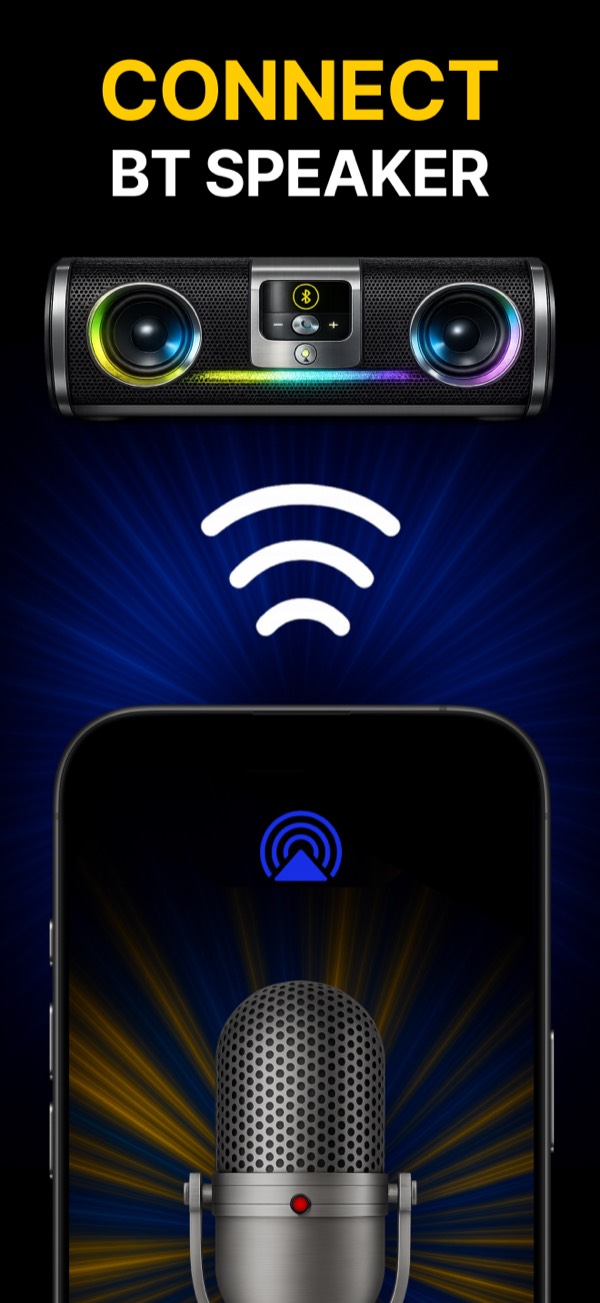
Put the music and the voice through the same speaker if you can. When the song plays from the TV and your voice from a separate speaker, the two drift apart and it gets hard to stay on beat.
Hold the phone like a mic, bottom edge toward your mouth, about a hand’s width away. The iPhone microphone sits at the bottom. Holding it flat in front of your face, like you’re reading a message, makes the voice thin.
The honest part: delay
Every Bluetooth speaker has a delay between the sound going in and the sound coming out. Usually it is a fraction of a second. You won’t notice it while talking. While singing, some people hear their own voice a beat late, and that can throw them off.
What helps:
- Use a speaker made for parties or karaoke. Newer and more expensive models tend to have less delay than old budget ones. It varies a lot from model to model, so if you have two speakers, try both.
- Keep the phone close to the speaker. Walls and distance make the connection drop out, and a weak link adds stutter on top of delay.
- Turn off other Bluetooth devices paired to the same iPhone, like earbuds or a watch playing audio.
- Skip AirPlay for singing. AirPlay speakers hold a buffer of audio so music plays smoothly, which means a much longer delay than Bluetooth. Fine for a speech, frustrating for a song.
- Use a cable if your speaker has an AUX input. A USB-C or Lightning to 3.5 mm adapter plus an AUX cable gives the shortest delay of all. You lose the walking-around freedom, but the voice and the beat line up.
If some delay is still there, follow the music, not your own voice in the speaker. For a lot of people a small delay stops bothering them after the first song.
Make your voice sound better
A phone mic through a speaker can sound flat or boomy. Three settings do most of the work:
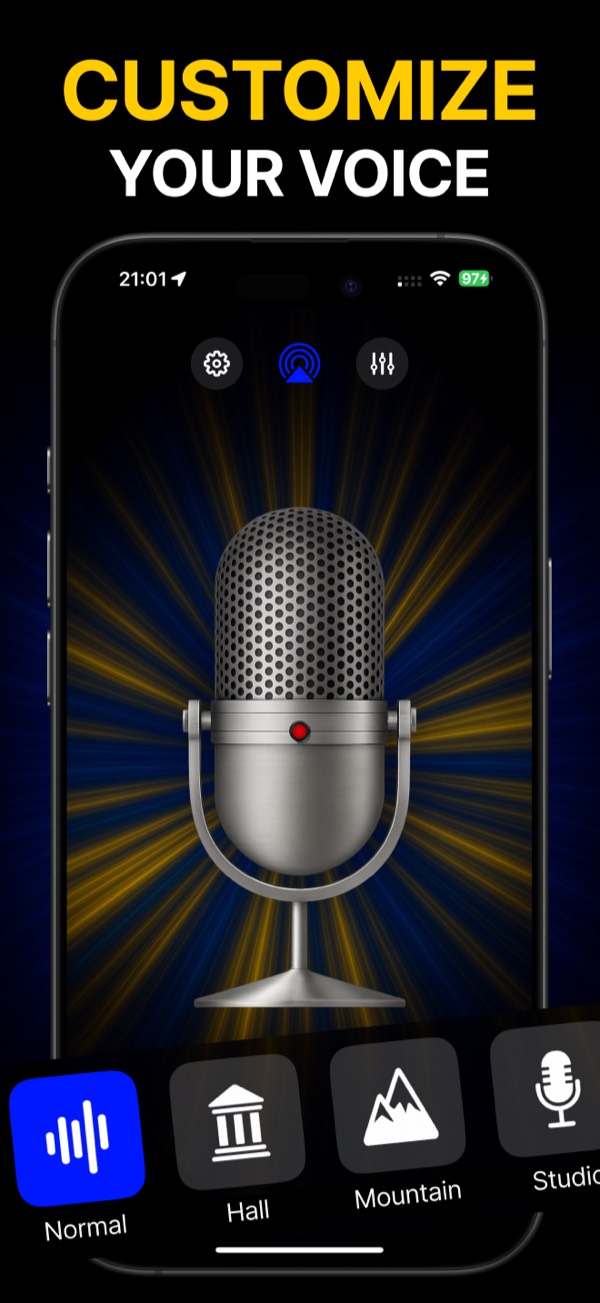
- A room preset. Hall adds a soft echo that hides small mistakes, good for ballads. Studio keeps the voice dry and clear, good for rap or fast songs.
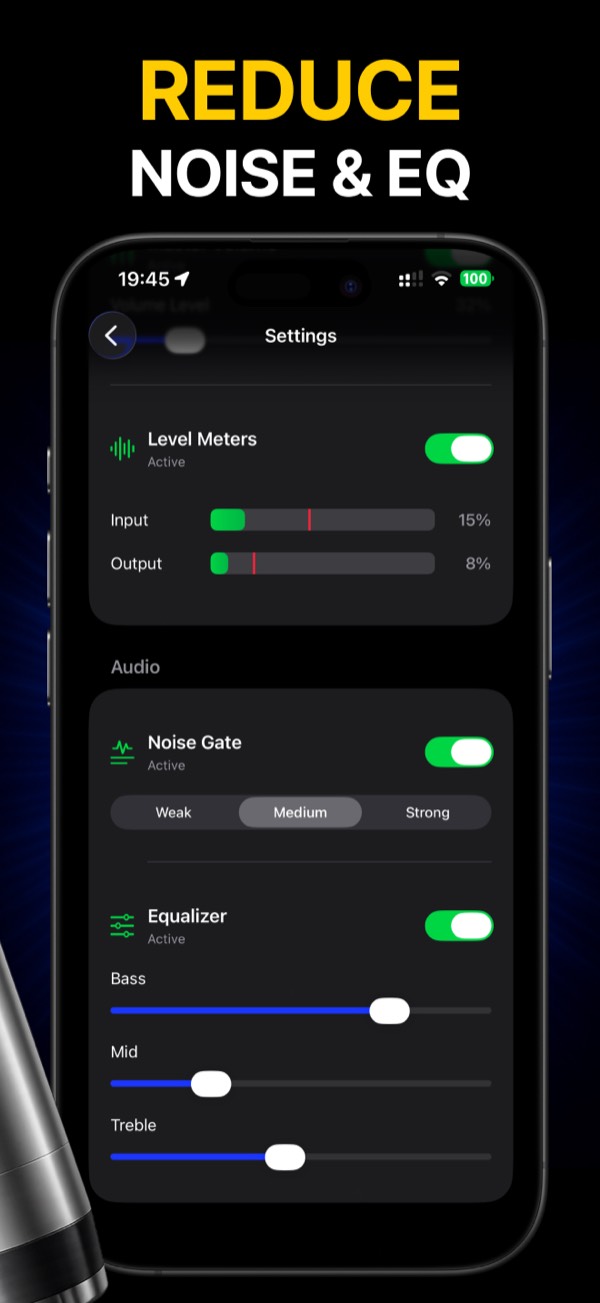
- Equalizer. If the speaker booms, pull the bass down. If your voice gets sharp on high notes, pull the treble down a little.
- Noise gate. It cuts the mic between lines, so the speaker stays quiet while you wait for the next verse. Start on medium. On strong it can clip the first soft word of a line.
Watch the level meter while you sing the loudest part of the song. If the bar hits the end, lower the master volume or step back from the phone.
Avoid the howl
The squeal you hear sometimes is feedback: the mic picks up the speaker, sends it back to the speaker, and the loop grows. Point the bottom of the phone away from the speaker and keep a couple of steps between you. The noise gate also helps, since it mutes the mic when you’re not singing.
A quick checklist for the party
- Charge the iPhone. Live audio drains the battery faster than music playback.
- Turn on Do Not Disturb, so a notification sound doesn’t go out through the speaker mid-chorus.
- Make a playlist of karaoke versions before guests arrive.
- Turn on Record in the app if you want to keep the best moments. Recordings save with the effect you used.
 Bluetooth Microphone FX Pro
Free download · iPhone
Get Bluetooth Microphone FX Pro on the App Store
It is free to download. Premium unlocks the noise gate, the equalizer and unlimited use.
More about the app: iPhone microphone for any speaker.